naijafirmware Home of Android firmwares: LATEST TECHNOLOGY NEWS
Showing posts with label LATEST TECHNOLOGY NEWS. Show all posts

Thursday, 17 August 2017

INFINIX HOT S LATEST FIRMWARE DOWNLOAD added on 8/18/2017


Infinix hot S2 Stock Rom firmwarefile Download


For Laptop

 For Android N Version :X521-J5088A1C1-N-170505V10 Update :07/06/2017


 Version :X521-J5088E1G1-N-170508V10 Update :07/06/2017


Version :X521-J5088AC-N-170524V20 Update :07/06/2017  


Version :X521-J5088EG-N-170524V19 Update :07/06/2017  


For TF card

For Android N

  • Version :T-Card-X521-J5088A1C1-N-170505V10
  • Update :07/06/2017
  • DOWNLOAD
  • Version :T-Card-X521-J5088E1G1-N-170508V10
  • Update :07/06/2017
  • DOWNLOAD
  • Version :T-Card-X521-J5088AC-N-170524V20
  • Update :07/06/2017
  • DOWNLOAD
  • Version :T-Card-X521-J5088EG-N-170524V19
  • Update :07/06/2017
  • DOWNLOAD


Infinix S2 Pro Specs

Here are a few specs of the Infinix S2 Pro:

General Features

  • Platform: Android 6.0 (Marshmallow), XOS Chameleon
  • Processor: 1.3GHz octa-core Processor (MediaTek MT6753)
  • GPU: Mali-T720 MP2
  • Memory: 3GB RAM
  • Colours: Black, Blue
  • Dimension: 148.9 x 72.1 x 8.07 mm
  • Weight: 147 g
  • SIM Type: Micro-SIM
  • SIM Count: Dual SIM, Dual Standby

Display

  • Display: 5.2-inch Touch Display, 720 x 1280 pixels (282 ppi)
  • Screen Protection: 2.5D Dragontrail Glass

Camera

  • Rear Camera: 13 MP Camera, 1080p HD Video
  • Rear Camera Features: Dual-LED Flash, Autofocus
  • Front Camera: Dual 13MP + 8MP Camera, Autofocus, Soft LED Flash

Storage

  • Built-in Storage: 16GB or 32GB Storage
  • Memory Card Support: Yes, up to 128GB (requires SIM2 slot)
  • Bundled Cloud Storage:

Network Support

  • 2G GSM: Yes
  • 2G CDMA 1X: No
  • 3G WCDMA: Yes
  • 3G CDMA EVDO: No
  • 4G LTE: Yes, LTE Band 1(2100), 3(1800), 5(850), 7(2600), 20(800), 38(2600 TDD) 40(2300 TDD) or LTE Band 2(1900), 3(1800), 4(1700/2100), 7(2600), 28B(700) [Latin America]

Internet & Connectivity

  • GPRS: Yes, up to 48kbps
  • EDGE: Yes
  • 3G/WCDMA/HSPA: Yes
  • HSPA+: Yes
  • CDMA EVDO: No
  • 4G LTE: Yes
  • WLAN: Wi-Fi 802.11 a/b/g/n
  • Wi-Fi Hotspot: Yes
  • Bluetooth: Yes, Bluetooth 4.2
  • NFC: No
  • Infrared Blaster: No
  • USB Port: Yes, microUSB 2.0

Messaging

  • SMS/MMS: Yes
  • Instant Messaging: Yes
  • Push Emails: Yes
  • Email Protocol: IMAP4, POP3, SMTP

Entertainment

  • Music Player: Yes, mp3, WAV, FLAC, eACC+
  • Video Player: Yes, MPEG4, H.263, H.264, XviD
  • FM Radio: Yes
  • Loudspeaker: Yes
  • 3.5mm Jack: Yes

Navigation

  • Navigation: Yes, GPS with A-GPS
  • Maps: Yes, Google Maps

Sensors & Control

  • Digital Compass: Yes
  • Accelerometer: Yes
  • Proximity Sensor: Yes
  • Light Sensor: Yes
  • Barometer: No
  • Pedometer: No
  • Heart Rate Monitor: No
  • Gyroscope: Yes
  • Fingerprint Scanner: Yes (Rear)
  • Iris Scanner: Yes
  • Intelligent Digital Assistant: Yes
  • Motion Sensing / Gesture Control: No
  • Voice Control: Yes

Other Features

  • Video Streaming: Yes
  • Active Noise Cancellation: No
  • Wireless Charging: No
  • Water Resistant: No
  • Dust Resistant: No
  • Image Editor: No (download at store)
  • Video Editor: No (download at store)
  • Document Viewer: Yes
  • Document Editor: No (download at store)

Battery

  • Battery: 3000 mAh Li-ion Battery (Non-removable)
  • Standby Time:
  • Talktime:
  • Fast Charging: Yes

Sunday, 6 August 2017

Download Android Lollipop 5.1.1 firmware for Matricom G-Box

Download Android Lollipop 5.1.1 firmware for Matricom G-Box

Posted in Jul 20, 2017 in Firmwares, TV Boxes, no comment

This firmware is for Matricom G-Box with Amlogic S802 Quad Core as CPU.

Matricom G-Box

Download Android Lollipop 5.1.1 firmware for Matricom G-Box from here, here or here.
Firmware details
Archive: ms8 clone 20150418 firmware
Model: Matricom G-Box
Image file size: 395 MB
Platform: Amlogic S802
Image name: q_2.1.1_b3aa81fe27.zip
Build number: G-Box/q/q:5.1.1/LMY47V/b3aa81fe27:userdebug/test-keys
Inside archive: firmware + factory_update_param.aml + recovery.img
Caution: Please do not update firmware unless you know what you are doing, you really want it or it is absolutely necessary. Firmware updates may occasionally have bad results, like bricking your device, temporarily or permanently. The firmware update process is done entirely at your own risk. Before attempting to update the firmware, back up your data.

Did this article help you? If so, please tell me in a comment what do you think about it.

Download Android 7.1 Noughat Rom stock firmware for R-TV BOX S10 add the 2017-08-07


Download Android 7.1 stock firmware for R-TV BOX S10

Posted in Jul 19, 2017 in Firmwares, TV Boxes

This firmware is for R-TV BOX S10 with Amlogic S912 as CPU.


Download Android 7.1 stock firmware for R-TV BOX S10 from here, here and here. Download Amlogic USB Burning Tool v2.0.8 from here or download Amlogic Burn_Card_Maker v2.0.2 from here.
Firmware details
Archive: jnw_s912_r-tvbox-s10_9377_mac_20170619
Model: R-TV BOX S10
Image file size: 636 MB
Platform: Amlogic S912
Image: jnw_s912_r-tvbox-s10_9377_mac_20170619.img

Caution: Please do not update firmware unless you know what you are doing, you really want it or it is absolutely necessary. Firmware updates may occasionally have bad results, like bricking your device, temporarily or permanently. The firmware update process is done entirely at your own risk. Before attempting to update the firmware, back up your data.

Did this article help you? If so, please tell me in a comment what do you think about it.

Download latest Android Lollipop 5.1.1 stock firmware for Egreat A10 TV Box

Download latest Android Lollipop 5.1.1 stock firmware for Egreat A10 TV Box

Posted in Aug 1, 2017 in Firmwares, TV Boxes, no comment

This firmware is for Egreat A10 TV Box with HiSilicon HI3798CV20 as CPU. BTW, you can now pre-order Egreat A10 TV Box from Banggood.com for only $299 with free shipping.

Egreat A10 TV Box
Download latest Android Lollipop 5.1.1 stock firmware v1.2.3.0 for Egreat A10 TV Box from here, here or here. Download previous firmware from here.
Firmware details
Archive: A10BD_EN_Firmware_20170719_v1.2.3.0
Model: Egreat A10 TV Box
Image file size: 603 MB
Platform: HiSilicon HI3798CV20
Image name: update.zip
Build number: Hi3798CV200-eng 5.1.1 LMY48W eng.root.20170718.083732 test-keys / HiSTBAndroidV6/Hi3798CV200/Hi3798CV200:5.1.1/LMY48W/root07180842:eng/test-keys
Inside archive: firmware + bootargs.bin + fastboot.bin + recovery.img
Desktop & Player version: 2.1.19
Firmware upgrade instructions
This version firmware has three ways to update, user data won’t be wiped.
1. OTA Update. The device will upgrade to newest firmware after you connect internet.
2. USB Update.
3. Forced refresh/recovery system.
The instructions to force to recovery the firmware
1. Please download the forced recovery firmware, the forced recovery firmware contains the following 4 files: update.zip, fastboot.bin, recovery.img, bootargs.bin
Please do not modify the file names and copy these four files to the root directory of the U-disk of FAT32 disk format.
2. Cut off the power supply of this machine, inset the U-disk into the USB2.0 interface of this machine, with a slender hard object (something like the clip after expansion) to insert into the RST small round hole, keep holding down the RST key in RST round hole not loosened, turn on the machine power after holding down the RST button.
3. Keep the posture, release the RST button until the TV screen appears the prompt (the green android small robot animation icon) of being forced refresh/recovery system, the system will automatically complete the forced refresh/recovery system process.
4. Please be patient, after the forced refresh/recovery system is completed, this machine will automatically restart, after restart, the player can be normally put into use.
Notes
– Please do not turn off or cut off the power of this machine during the progress of upgrading, otherwise it may cause this machine can’t boot.
– The file name of the forced recovery system is very important, do not modify the file name (including capital and lower-case).
– If you failed in a check, it is likely that the file has not been downloaded successfully or the file has been corrupted, please download again.
Changelog 1.2.3.0
Player: Exclusive support 4KUHD blu-ray full menu
Player: Added online subtitle function
Player: Added multichannel LPCM audiotrack RAW passthrough
Player: Optimized of open source slow response problems
Player: Subtitles time offset deviation set to +-200 seconds
Player: Always display 3D options when playing
Player: Fixed the audio stream displayed as 0Kbps
Player: Fixed the color space will change the problem
Player: Fixed the LPCM audio track caton problems on full menu mode playback
Player: Repair LPCM 5.1 may issue of noise
Player: Fixed the problem that online app could not play after playing HDR video
UI: Volume adjustment level added to 100
UI: Added homepage shortcut bar can be customized function
UI: Added six background pictures
UI: Added custom background picture function
UI: Added the first screen is still for 30 seconds to automatically reduce brightness
UI: LED display indicates the new marquee screen save
UI: Optimized screen saver(now completely shut down video output)
UI: Added new way to add shared paths in all files
Setting: Add more preferred track subtitle language
Settings: Added TRANSMISSION function switch in the general menu
Settings: Optimized “UHD” will be changed to “4K UHD” in the resolution menu
Settings: Added acceptable beta version update function
Posterwall: New version Posterwall 2.0 updated added a lot of new features
Posterwall: Added cross storage library function
Posterwall: Added library path custom name
Posterwall: Added favorite function
Posterwall: Added Collection and Series classification
Posterwall: Added direct delete file function in the poster wall
Posterwall: Added film suit editing function
Posterwall: The poster wall and File Browser Integration
Posterwall: Support subfolders to join the library
Poster-wall: Optimized filename display
Poster-wall: Fixed the wrong episodes of an unknown series
System: Built-in transmission download tools
System: Built-in applications now allowed to uninstall
System: Eliminate redundant built-in applications
System: Fixed some machines that do not enter standby problems after power on
System: Fixed will automatically switch off after the problem
System: Fixed the problem that the third-party app display some Chinese
System: optimize multiple system parameters
System: Fixed the problem that the player assistant is Chinese


Overseas Department EGREAT TECHNOLOGY
Mail: sales1@egreatworld.com
Skype:lijuan19890320
Web: www.egreatworld.com

Caution: Please do not update firmware unless you know what you are doing, you really want it or it is absolutely necessary. Firmware updates may occasionally have bad results, like bricking your device, temporarily or permanently. The firmware update process is done entirely at your own risk. Before attempting to update the firmware, back up your data.

Did this article help you? If so, please tell me in a comment what do you think about it.

Himedia Q30 Android 7.0 TV Box – First impressions & Quick Review


Himedia Q30 Android 7.0 TV Box – First impressions & Quick Review

Posted in Jul 31, 2017 in Reviews, TV Boxes, no comment

Best Price Alert! You can order Himedia Q30 Android 7.0 TV Box from Alibaba.com.

Himedia Q30
Meet Himedia Q30 Android 7.0 TV Box
The housing like most TV Box from HiMedia is made of aluminum, in black color. The case and the TV Box are doing a very good impression. TV Box is a really high quality.  In front we have the Power button, LED panel & IR receiver. The left side carries a full size USB 2.0 port alongside with SD/MMC card reader, while two full size USB 3.0 & USB 2.0 ports are located on the right side. The external WiFi antenna, optical S/PDIF out, composite video output (RCA), HDMI port, RJ45 Ethernet 10/100 Mbps port, reset hole & DC power port are located on the back. At the center of the top cover we find the HiMedia logo. At the bottom of the device there are rubber pads to prevent shifting, and serial number and MAC address. It supports a wide range of video and audio codecs, allowing you to enjoy most of your media. Ethernet, Wi-Fi and Bluetooth ensures you never get short of connectivity options. Android Nougat 7.0 operating system allows you to install apps and enjoy unlimited stream of movies, sports events, music, TV shows and much more, both paid and free, as you wish.
Next, watch the first impressions and the experience on Android Nougat 7.0 stock firmware.
Model: Q30
Firmware tested: Android Nougat 7.0 stock
Board: bigfish
Build number: HiSTBAndroidV6/Hi3798MV200/Hi3798MV200:7.0/HMD-2.0.4/2017-05-17.095242:eng/dev-keys
Build ID: HMD-2.0.4
Root: Firmware is not rooted.
Oher: The stock firmware runs very smooth and I didn’t find any problems. During my tests, I didn’t experienced any applications force closes and hangups. Google Play Store and gapps are working just fine. 3rd party apps downloaded and updated without issues.
Storage. Total Capacity: 8 GB. Internal Storage without OS: 4.06 GB,  Space available: 2.86 GB (70%). The device sees with no problem at all my Mixza Tohaoll 128GB SDXC Micro SD Memory Card and my Netac K330 1TB External HDD USB 3.0. Full photo album here. Unboxing Himedia Q30 Android 7.0 TV Box here. Official Webpage here. You can download Android Nougat 7.0 stock firmware for Himedia Q30 TV Box from here.
The launcher looks nice,with big and nice tiles, like in Windows 8.1 / 10 Metro style. There are a lot of preinstalled applications, including Play Store and Google applications (gapps). This firmware version hasn’t root acces.
In Antutu Video Tester 3.0 Himedia Q30 Android 7.0 TV Box scores 909 points, a very good score in this test ranking. It played smoothly almost all video file types; this firmware version fully supports 27 video & audio format files and it partially supports only 3 video & audio format files.
In Antutu Benchmark 6.2.7 the device achieves a good score, over 35.100 points.
Wifi Internet speed tested gets also pretty good values: over 46 Mbps in download and the upload speed was also over 43 Mbps. The router used in this test is Xiaomi Mi WiFi Router, mounted in another room.
Himedia Q30 Android 7.0 TV Box  is indeed a very good device for the money, you can try it out for a great experience on an Android TV Box.

Himedia Q30 Himedia Q30 Himedia Q30 Himedia Q30 Himedia Q30 Himedia Q30 Himedia Q30

About Himedia. HiMedia Technology Limited is a High-Tech Company that was found in 2005 by CEOs with rich experience in HD Player and Entertainment Industry in High-Tech Zone, Shenzhen, China, specializing in HD media player, Android TV Box, IPTV set top box, OTT box, and hybrid box since 2005. Nearly decades of experience of HiMedia’s 63 English-speaking R&D team enable us to provide quality-oriented products and service to customer worldwide and be committed to pushing the boundaries and be the best in the eyes of our customers. With products and service that exceed our customers expectation, We reaching every sweet home and accompany you to joy, to share, and to explore this wonderful entertainment world.

Did this article help you? If so, please tell me in a comment what do you think about it.

Don’t miss any of our future video tutorials, follow us on Youtube. Like us on Facebook. Add us in your circles on Google+. Watch our photo albums on Flickr. Subscribe now to our newsletter.

Download latest Android 7.1 stock firmware for Sunvell T95U Pro TV Box


Download latest Android 7.1 stock firmware for Sunvell T95U Pro TV Box

Posted in Jul 30, 2017 in Firmwares, TV Boxes, no comment

This firmware is for Sunvell T95U Pro TV Box with Amlogic S912 as CPU. You can buy it from Gearbest.com for only $59.99 with free shipping world wide.

Sunvell T95U

Download latest Android 7.1 stock firmware for Sunvell T95U Pro TV Box from here or here. Download latest Android 6.0 stock firmware for Sunvell T95U Pro TV Box from here.
Download Amlogic USB Burning Tool v2.0.8 from here or download Amlogic Burn_Card_Maker v2.0.2 from here.

Firmware details
Archive: T95UPRO_a9377_7.1
Model: Sunvell T95U Pro TV Box
Image file size: 549 MB
Platform: Amlogic S912
Image name: aml_upgrade_package.img
Inside archive: firmware + aml_sdc_burn.ini + u-boot.bin.sd.bin

Caution: Please do not update firmware unless you know what you are doing, you really want it or it is absolutely necessary. Firmware updates may occasionally have bad results, like bricking your device, temporarily or permanently. The firmware update process is done entirely at your own risk. Before attempting to update the firmware, back up your data.

Did this article help you? If so, please tell me in a comment what do you think about it.

Download Android 5.1.1 Lollipop firmware for Rikomagic V5 TV Stick

Download Android 5.1.1 Lollipop firmware for Rikomagic V5 TV Stick

Posted in Aug 3, 2017 in Firmwares, TV Boxes, no comment

This firmware is for RKM V5 TV Stick with Rockchip RK3288 as CPU.

Rikomagic V5
Download Android 5.1.1 Lollipop stock firmware for Rikomagic V5 TV Stick from here or here. Download prevuious firmware from here. Download Android KitKat 4.4.2 stock firmware for Rikomagic V5 TV Stick from here. Follow this tutorial to flash the firmware. Download Rockchip Driver Assistant v4.4 from here and download Rockchip Batch Tool v1.8 from here.

Firmware details
Archive: V5_5.1_170626
Model: Rikomagic V5 TV Stick
Image file size: 425 MB
Platform: Rockchip RK3288 / RK32
Image: V5_5.1_170626.img
Build number: RKM_ANDROID5.1.1-SDK-v1.00.00-20170619.1839
Model number: V5
FW version: 5.0.00
Boot version: 2.35
SDK version: RK30_ANDROID5.1.1-SDK-v1.00.00
Caution: Please do not update firmware unless you know what you are doing, you really want it or it is absolutely necessary. Firmware updates may occasionally have bad results, like bricking your device, temporarily or permanently. The firmware update process is done entirely at your own risk. Before attempting to update the firmware, back up your data.

Did this article help you? If so, please tell me in a comment what do you think about it.

About Rikomagic
We were pioneers of the Android Mini PC concept and were the first Android Mini PC provider. Based in Shenzhen, China, Rikomagic aims to revolutionize the digital media player market. Our Research and Development team has extensive expertise in consumer electronics products and the development of network media players. Our core strength remains focussed around Android PCs and Android Mini PCs, where we have a great deal of experience. Rikomagic has been at the forefront of the development of multimedia, internet connected devices which truly transform TVs into home entertainment centers. The combination of our forward-looking market research, proven technological expertise and acumen, innovation, and our mature and efficient development process has given us industry-wide recognition. We differentiate ourselves by the quality, value and sophistication of our products. Our customers trust the RKM brand to enhance their entertainment experience, and we always strive to exceed their expectations.

Download Android 4.4.2. KitKat stock firmware for Rikomagic MK902S TV Box


Download Android 4.4.2. KitKat stock firmware for Rikomagic MK902S TV Box

Posted in Aug 3, 2017 in Firmwares, TV Boxes, no comment

This firmware is for Rikomagic MK902S TV Box with Rockchip RK3188 as CPU.

Rikomagic MK902S
Download Android 4.4.2. KitKat stock firmware for Rikomagic MK902S TV Box from here or here.  Download previous firmware from here. More details about Rikomagic MK902S TV Box here. Download Rockchip Driver Assistant v4.4 from here and download Rockchip Batch Tool v1.8 from here.
Firmware details
Archive name: MK902S_170621
Image file name: MK902S_170621.img
Firmware size: 352 MB
Model: Rikomagic MK902S TV Box
Platform: Rockchip RK3188 / RK31
Firmware: Android KitKat 4.4.2 stock
Model number: MK902
Company: RKM
FW version: 4.4.02
Boot number: 2.31
SDK version: RK30_ANDROID$(PLATFORM_VERSION)-SDK-v1.00.00 \
Build number: RKM MK902-eng 4.4.2 KOT49H eng.pl.20170620.140448 test-keys

Caution: Please do not update firmware unless you know what you are doing, you really want it or it is absolutely necessary. Firmware updates may occasionally have bad results, like bricking your device, temporarily or permanently. The firmware update process is done entirely at your own risk. Before attempting to update the firmware, back up your data.

Did this article help you? If so, please tell me in a comment what do you think about it.

Download Android Nougat 7.0 stock firmware for Himedia Q30 TV Box

Download Android Nougat 7.0 stock firmware for Himedia Q30 TV Box

Posted in Aug 2, 2017 in Firmwares, TV Boxes, no comment

This firmware is for Himedia Q30 TV Box with HiSilicon Hi3798M V200 as CPU.

Himedia Q30 TV Box
Download Android Nougat 7.0 stock firmware for Himedia Q30 TV Box from here, here or here. Download previous firmware from here. Unboxing Himedia Q30 Android 7.0 TV Box here. Himedia Q30 Android 7.0 TV Box – First impressions & Quick Review here.
Firmware details
Archive name:  Himedia Q30 HMD-2.0.4 2017-07-28.190939
Image: update.zip
Archive file size: 614 MB
Platform: HiSilicon HI3798CV200
Build number: HiSTBAndroidV6/Hi3798MV200/Hi3798MV200:7.0/HMD-2.0.4/2017-07-28.190939:eng/release-keys

How to update Himedia Android TV Box?
Firmware Upgrade by Recovery Mode (user data will be cleared)
1.Download a new firmware and place the firmware onto the ROOT directory of a USB drive.
2. Plug the USB drive into an empty USB HOST on the SMART TV BOX.
3.With the SMART TV BOX turned off,use a paper clip or pen point to press and hold the small pinhole restore button on the SMART TV BOX
4.While pressing the restore button,turn on the SMART TV BOX. Continue to hold the restore button for 5 more seconds,then release it.
5.The SMART TV BOX will begin upgrading the firmware from the USB drive.
6. Wait for the SMART TV BOX to complete the upgrade. Please be patient as it may take around 5 minutes to complete.
7. When finished, The SMART TV BOX will auto reboot.
Firmware upgrade from Settings Menu (user data will not be cleared)
1. Download a new firmware and place the firmware onto the ROOT directory of a USB drive.
2. Plug the USB drive into an empty USB HOST on the SMART TV BOX.
3. Go to Settings→System→System upgrade to select/click the letter of the USB drive.
4. The SMART TV BOX will begin upgrading the firmware from the USB drive.
5. Wait for the SMART TV BOX to complete the upgrade. Please be patient as it may take around 5 minutes to complete.
6. When finished, The SMART TV BOX will auto reboot.
Caution Please do not update firmware unless you know what you are doing, you really want it or it is absolutely necessary. Firmware updates may occasionally have bad results, like bricking your device, temporarily or permanently. The firmware update process is done entirely at your own risk. Before attempting to update the firmware, back up your data.

Did this article help you? If so, please tell me in a comment what do you think about it.

Download latest Android 7.1.1 stock firmware for Vorke Z1 TV Box


Download latest Android 7.1.1 stock firmware for Vorke Z1 TV Box

Posted in Aug 1, 2017 in Firmwares, TV Boxes, no comment

This firmware is for Vorke Z1 TV Box with Amlogic S912 as CPU. You can buy it from Geekbuying.com for only $74.96 with free shipping.

Vorke Z1 TV Box
Download latest Android 7.1.1 stock firmware PC version for Vorke Z1 TV Box from here or here.  Download Android 6.0 stock firmware for Vorke Z1 TV Box from here. Download previous firmware from here. Download Amlogic USB Burning Tool v2.0.8 from here or download Amlogic Burn_Card_Maker v2.0.2 from here.
Firmware details
Archive: Vorke Z1_S912_Rooted_01072017_V0321S
Model: Vorke Z1 TV Box
Image file size: 638 MB
Platform: Amlogic S912
Image name: Vorke_Z1-NMF26Q-20170701.121615.V0321.img
Caution: Please do not update firmware unless you know what you are doing, you really want it or it is absolutely necessary. Firmware updates may occasionally have bad results, like bricking your device, temporarily or permanently. The firmware update process is done entirely at your own risk. Before attempting to update the firmware, back up your data.

Did this article help you? If so, please tell me in a comment what do you think about it.

Download Android Nougat 7.1.2 firmware for Mini M8S Pro TV Box

Download Android Nougat 7.1.2 firmware for Mini M8S Pro TV Box

Posted in Aug 6, 2017 in Firmwares, TV Boxes, no comment

This firmware is for Mini M8S Pro TV Box with AMLogic S912 as CPU. BTW, you can now buy Mini M8S Pro TV Box from Gearbest.com for only $49.99 with free shipping world wide.

Mini M8S Pro
Download Android Nougat 7.1.2 firmware SD card version for Mini M8S Pro TV Box from here or here.  Download Android Nougat 7.1.2 firmware PC version for Mini M8S Pro TV Box from here or here.
Download Amlogic USB Burning Tool v2.0.8 from here or download Amlogic Burn_Card_Maker v2.0.2 from here.

Firmware details
Archive name: MINI M8S PRO_703N0_LTM8830_sdcard / MINI M8S PRO_703N0_LTM8830
Image: q201-ota-20170713.zip / MINI M8S PRO_703N0_LTM8830.img
Archive file size: 572 MB / 495 MB
Platform: AMLogic S912
Build number: Amlogic/q201/q201:7.1.2/NHG47L/20170713:user/test-keys
Inside archive: firmware + factory_update_param.aml + recovery.img

Caution Please do not update firmware unless you know what you are doing, you really want it or it is absolutely necessary. Firmware updates may occasionally have bad results, like bricking your device, temporarily or permanently. The firmware update process is done entirely at your own risk. Before attempting to update the firmware, back up your data.

Did this article help you? If so, please tell me in a comment what do you think about it.

Wednesday, 21 June 2017

UPGRADING COOLPAD 8295M, 8295 AND HOW TO BYPASS C.P.B INVALID OR EXTRACTION ERRORS ON YGDP TOOL

 BYPASSING ERRORS WHEN UPGRADING OR HANDLING OF MOST COOLPAD CPB 
STOCK ROM


The coolpad 8295m with mediatek processor and chipset is one of the devices that give out errors when it is being updated wrongly or in an unsupported environment which could make the user or the updater of the device to think the situation is out of hand because the errors can only solved with the use of proper observations and steps. The steps mentioned above would be the needed expertise that would lead to a successful operation in the task at hand. Since the coolpad 8295m and 8295 comes with and is powered by a mediatek processor, the Rom to be flashed on the device should be in the form of scatter related firmware but unfortunately the Rom is only flash-able with the use of CPB extraction software called YGDP tool as the Rom comes in CPB format in default so there is need for the use of an adequate and capable and as well corresponding tool made solely for the updating of coolpad devices with mediatek (CPU) this tool is normally called YGDP tool.

Updating Coolpad 8295m, Coolpad 8295 without Errors

Below are the necessary steps to take to successfully flash or update the 8295m Android device without annoying errors of (invalid CPB file) which come out as error warning most times.

a. Make use of a very strong and reliable USB cables to have a stable connection between PC and USB

b. Install correct and appropriate MediaTek driver since the device has (MTK) chipset

c. Make sure device is powered off and give it some minutes to fully power down

d. Open XGDP tool make use of the latest ( as it shows no extraction) errors hence it is more ideal and more recently patched

Navigate to the ( config ) segment of the tool and load the CPB file wait for the extraction to complete, after the process complete, navigate to the “C Drive” then open the YGDP folder which should be at the bottom of the drive then open the (download folders) which should be numerous in number from henceforth the firmware for the coolpad 8295m could be seen in scatter format hence the need or use of flash tool could be effectively employed.


Make use of SP Flash tool for the operation because the firmware has been extracted. Flash the device normally and wait for the first boot.


furthermore in the case of facing constant extraction errors when dealing with the extraction or loading of the normall firmware of a coolpad device it may be helpfull to use various version of YGDP TOOL .

find scatter after extraction


TO FIND SCATTER FILE AFter extraction open YGDP folder open all download folders listed in inside search and find scatter file after extraction done accurate

FIXING NO SERVICE ISSUE ON SAMSUNG 19300

FIXING NO SERVICE ISSUE ON SAMSUNG GT-19300

INVALID IMEI UNKNOWN BASEBAND

Most times Samsung devices develop or exhibits some issues which would indicate they are due for some kind attentions some of the attentions may be in the form of software oriented errors or sometimes hardware disorders which may normally due to use and misuse of the most likely faults that are occasionally exhibited by Samsung devices that are powered by qualcomm processors includes:-


Network issues


Low battery Life


Occasional rebooting


Quick battery drain


Abnormal behaviors or malicious hijacking by unknown applications inconsistent network signal strength overheating which in turn drains the battery due to apps that maybe maliciously running in the background of the software.

How To Fix Network Related issues on Samsung 19300 ( dualcomm boot loades) Most times the Samsung device at hand normally develops issues which may make it less useful in the hands of its users, hence there will be the need for the appropriate attention of an engineer. Below are ways by which any network that is exhibited by Samsung 19300 maybe fixed:-

Flashing of repair firmwares created either by Samsung or by other developer engineers out there; these repair firmwares normally contains most of the files that would be needed to fix any area that may be under suppression or abnormality in the Android system.


If the device is exhibiting incorrect (IMEI Number) in the case that it shows imei as follows (04933921111) this shows the imei region has been corrupt hence there would be need for the repair or rewriting of the IMEI region. If the device shows unknown base band there would be the need to rewrite the [ EFS Region ] of the software Android system by flashing correct EFS File by [ Odin ] if the faults persist a combined flashing of repair firmwares with modern files could help restore the bricked device network issues.

HOW TO FLASH LENOVO DEVICES WITH QUALCOMM BOOTLOADERS

HOW TO FLASH LENOVO ADROID DEVICES WITH INBIULT QUALCOMM BOOTLOADER

Most devices that comes with Qualcomm bootloader for flashing the system may require some information and experience as well as a good working software environment when the need arises it is necessary to perform a system upgrade of flashing of a  Qualcomm devices there are many tools to call upon to perform the task at various times depending on the devices whether for use of the local recovery or in the use of Qualcomm programmed flashing tools.


Steps To Take Before Flashing A Qualcomm Device.    

Know and note down the software type to be flashed, whether it’s in the form of (Qsb) or in other formats.

Noting down the extension and format of the raw file of the flash file is an advanced step towards taking the next step.

Next step Is to choose to correct operating system to be used; one of the most friendly operating systems for successful flashing of Qualcomm devices is the reputable Windows called (Windows XP ) through old as it may seem but it’s very friendly and very compatible environment to setup a ground for mobile device flashing. Window XP unique features  include installing devices drivers without flaws or conflicts. Install drivers without flaws or errors runs most programs under Admin right in its defaults settings hence easing the users the task of granting permissions to some useful programs without much work.

Flashing or Running Software – Firmware in The (MBN or Qsb) Format

Most firmware made for Qualcomm devices normally comes in (MBN)

Hence the Qualcomm flash tool is normally employed while applying such firmware on Qualcomm devices

Put the Qualcomm devices at hand to be upgraded in bootloader or download mode to enable good handshake of drivers with system, to be a little more professional there is a useful button combination to be pressed to launch the device at hand into the download mode so as to be easily detected by the flash tool.

Select the firmware then click the start button.


HOW TO FLASH QUALCOMM LG DEVICES, LG E400 OPTIMUS L3 UPGRADE GUIDE

HOW TO FLASH QUALCOMM LG DEVICES, LG E400 OPTIMUS L3 UPGRADE GUIDE


LG devices that comes normally with qualcomm CPU in the area of its flashing due to occurance of any software issue that may call for such action will require the use of compatible software made solely for the LG devices at hand while making sure the software version is properly taken note of this can be done only on a pc running on windows XP with the use LG flash tool called (KDZ Tool) which is the tool created by LG for solely the purpose of flashing or updating its device whether Qualcomm, Inferion, CDMA etc.


LG Qualcomm CPU flashing procedure:-

- Make sure to install the LG Android drivers making sure the pc detects the phone with a good hand shake and connection.

- Use a very use of a very healthy USB cable

- Be sure to assert whether the device to be flashed is original LG product

- Charge battery above 30%(percent)

- Do not connect or disconnect any other device from pc

- Close any program that may interfere with the progress of the process as it may lead to flaws in the      operating system of the windows which may put the device at the risk of witnessing a corrupt              bootLoader which is a very worst case scenario

- Boot device into download mode by pressing the adequate boot buttons like:- pressing volume(+)       and volume(-) button and also home button with power button while connecting the USB cable to       Launch the device manager to ensure there is good handshake between pc and connect device if not   reinstall drivers correctly.

- Select the KDZ file to be flashed on the LG device at hand

- Click on the start button then patiently wait for the KDZ tool to do the extraction of the software before the flashing proper will begin automatically provided it connect properly with the device

- A status bar will appear at the top of the tool showing the progress status and there will be need to wait for the processes to finish to avoid damaging the device


- Disconnect device from pc wait for first boot to complete

TIPS TO NOTE TO AVOID DEAD-LOOP-PRELOADER AFTER FLASHING OR DOING SOFTWARE UPGRADE ON XBOX-DEVICES

STEPS TO TAKE TO AVOID HAVING ERRORS AFTER

UPDATING OR FLASHING XBO DEVICES

Make a backup of necessary device partition before the flashing of new firmwares, the needed file that are to be backup include:- 

Uboot, Secro, seccfg, Booting, Preloader, Protect F, Protect S, and all the file should be backed up with the exception of the system and Userdata and cache file. Make it safer so the device could be restored if the internal software gets sundered hence the backup could be done with any software that could backup file on an MTK Devices in scatter format.


Below are The necessary tips which would help an Engineer to have a very positive Result updating XBO Devices:

Make a backup of the preloader partition make sure to know the boot version of the device as flashing a wrong firmware may cause to the device to be hardbricked and can be restored only by test point method.ie RX and TX GND 

Before the flashing of XBO devices for example, XBO V3+ which has 2 different boot version: i.e MT6572:- Kitkat Android Version and MT6580 which is Lollipop Android and boot version hence boot versions are completely different but they are made for the Model of XBO devices. Avoid Flashing An XBO device with a ROM that backed up in(BIN) that is been formatted, because it would leave the device with low battery causes undue stress on the devices “BootLoader” hence the device could be dead at the end of the operation.


How to prevent XBO devices and some Infinix Clone devices from having BootLoops


a. Make sure to power down your XBO devices in a situation whereby the battery falls below (10 %)     percent.

b. Do not let the device power down by itself because it would lead to a bootloop at the end which would reload the new firmware on the device.

c. Avoid installing unwanted apps on the device which may resulting in dullness or hanging occasionally.


UPGRADING GUIDE FOR LENOVO A3900 QUALCOMM PROCESSOR SD CARD METHOD CPU DEVICE

GUIDE TO SUCCESFULLY UPDATING LENOVO A3900


Flashing of mobile Chinese devices is common these days as they are widely used throughout the day to day activities.

When it comes down to Lenovo as a brand name in the GSM technology scope, Lenovo is not an exception since these devices are electronics and as such are duely expected to develop issues or faults due to use and misuse as they are not high and mobile devices.

As we all know Lenovo devices are widely used across all platforms. In most of these occasions such as home use, office, personal etc.


Tips to Note when Upgrading or Flashing of Lenovo A3900

Always check and know the chipset built Into the devices that is to be precise [the CPU] the Lenovo A3900 comes with a Qualcomm processor, hence the flashing of faulty Lenovo A3900 will require the use of the appropriate tool created for the purpose, therefore the upgrade normally should be done using the qualcomm flash tool if the drivers and correct firmware that has no password lock is produced or at hand.

Upgrading Lenovo A3900

- Guide By Recovery Method


Power off the device by pressing the power buttons for 2 to 3 seconds to switch it off, wait for some seconds for the Android system to fully power down.

Prepare an “SD Card” card preferable a (sandisk) memory card of about 4gb or 8gb preferably, then copy the android firmware into the root of the sd card the firmware should be in zip format. Insert the memory into the memory slot of the device then insert the battery.

Boot the device into Recovery then select the option (apply zip from zip from SD card)

Select yes for the process to begin in full.

After the process finishes installing the ROM then clear cache partition and wipe Factory Reset.

Power on the Android devices and wait for the first boot.

Repairing IMEI on Lenovo A3900 After Flash or Upgrade

As it is normal for most devices to have network related issues after a software change the Lenovo android A3900 do displays network related issues like (invalid IMEI) after the process hence if such happen solution is as follows:-

a. Power off device and do a factory reset


b. Navigate to the settings and erase the device by doing a factory reset of the device.


                       Lenovo_A3900_4.4.3_20160914 trusted rom 

 Lenovo_A3900_4.4.3_20160914.rar 

PRECAUTION TO IMPLEMENTATION WHILE UPDATING ITEL 1701, 1702, 1703 TABLET DEVICE

PRECAUTION TO IMPLEMENTATION WHILE UPDATING ITEL 1701, 1702, 1703 TABLET DEVICE


The Itel tablet 1702, 1703 and 1701 family is in the group of the highly used phones and tablets in Nigeria presently and across the world at large.

Therefore they are prone to use misuse and there will be the need for occasional attention towards the device either in the form of hardware repairs or mostly at some points. The errors can be software related because these devices are not by nature high end devices there maybe itches and errors at some points in time.


Below are some commonly exhibited (ERRORS ON ITEL 1701,1702,1703)

Low Battery Life

Low or network strength or signal issues

Boot Loops

Invalid mobile equipment identity [ IMEI ]

Quick battery drain

Monkey Virus Infestation

Constant Rebooting or Hanging Calibration issues resulting from unmatching firmwares


Upgrade Itel 1701 1702 1703 without or Bypassing Inevitable error

In the task of updating spreatrum devices there may be the some errors which may arise by accident and which could leave inexperienced GSM Engineers at Loss or in a state of dilemina they include:-

Irresponsive device which may involve incorrect handshake b/w device and flash tool while the device is still in boot loader mode

Solutions


The engineer should open the back cover of the device and disconnect battery then start all over. Pressing the boot buttons then connect the USB cable and let the tool do its work, if the faults still continues which is if the device fails to be flashed by the SPD flash tool there maybe need to disconnect all the battery legs and resoldering again incase if the device is not detected by the pc the solution is to press the power button together with the boot buttons. Again there may be need recharging the PC incase the battery runs out so the need to plug into power supply maybe needed


HOW TO FLASH OR UPGRADE ALLWINNER TABLETS DEVICES

STEPS IN FLASHING ALLWINNER ANDROID TABLETS AND DEVICES


Flashing and Upgrading of allwinner tablets and devices requires a lot of technical knowhow and also lots of necessary tools to be put in place for the operation to be successful.

Most Chinese allwinner tablets are mostly made Chinese (PCB) panels internally, therefore, they are mostly similar in their hardware features. Allwinner Chinese tablets mostly consist of these boot options (A10, A13, A12) therefore these software upgrade procedures should all be alike.
 
UPGRADING ALLWINNER TABLETS

Normally the flashing or upgrade of Chinese devices comes with necessity when the following arises:-


a. BootLoop

b. Hanging or Long duration booting

c. Hardware issues resulting from internal software issues like:- no vibrating, no sound, low network issues

Allwinners devices comes in various types it maybe in the form of a phone or a tablet or even an analogue devices hence the event of flashing or updating the internal software of the device, there would be the need for discretion and expertise


In the aspect of mobile device technology in a scope of its handling in the hand of its end users faults way arise or issues come up which would require the attention and services of hardware hence the device or if necessary occasional hardware repairs.

Allwinner Hardware Errors


· Broken touch or calibration

· Inconsistent or irregularity in network strength

· Damage sound system

· Microphone issues (mouth piece)

· Earpiece disorder (speaker)

· Faulty charging system

· Poor signal strength (antenna issues)

· Temperature overrate (integrated circuit issues)

· Hardware issues from external disorders like(broken caseing)

· Earpiece or Earplug Extention irregular contact (earpiece disorder)


Allwinner tablets at times may develop obstinate software issues which would require the correct flash file or allwinner firmware to be flashed on it.

Allwinner software upgrades procedure

· Disconnect device from external / dc current connections.

· Power off device

· Wait a few minutes for device to fully power down

· Connect a very reliable usb cable to the device

· Install the allwinner device drivers :- [Usb Vid] device would show up at the bottom of the device manager after a successful driver installation

· Open folder containing allwinner flash tool then execute the (exe) file in the folder let the drivers by allowing popups of ( unsigned drivers) which would show up. Open the flash tool then proceed to the folder containing the ROM to be flashed; hence select the ROM to be flashed after carefully and adequate assessment and check of the CPU model and boot number.


· Before the flashing process begins fully make sure to open the shield covering the CPU then check the letters and numbers written in bold letters after that the correct ROM to be flashed on the device can be decided.


· Hold the volume down or volume up hardware buttons then connect the USB cables which should be connected to the USB port of the pc directly.


· Press the power buttons tight or ten (10) times while connecting the USB cable in your PC or Computer. As the progress in the process begins automatically there would be the need to wait for the process to slowly complete at its own pace.


· After the operation completes disconnect the tablet from the pc and enjoy the booting as the process completes its time to check how the new ROM sits and operates with the device


Changes to expect after the upgrade or normal flash of an allwinner device:-

Fortunately if the ROM matches the hardware the ROM contains matches, matches the internal software and as well the major problem which is touch or calibrate [identification] all ways check and take note of the panel model number and find a matching firmware that would eventually settle down well in the tablet and restore the touch back working.


If after the upgrading or normal flash the device witness a missing or invalid [IMEI] due to security software issue consider it time to repair or rewrite the IMEI using Allwinner Imei tool

Monday, 19 June 2017

A GUIDE FOR UPGRADING FLASHING OR UPDATING OF TECNO DROID 7C, 7CS, 7CPRO


 A GUIDE  TO SUCCESFULLY UPDATING THE TECNO DROID 7C DROID 7CS DROID 7C PRO TABLETS


The tecno 7C droid series and family chain has many eye catching features and designs as altogether which puts them out and stand in the comparising and characteristics with similar devices and as well its software design which is very elegant beautiful and has high programming endowment hence it normally comes with the [Lollipop Android system] putting the end user to the treath of experiencing high quality and highly efficient Android system. The flashing or updating of the tecno droid tablet normally happen in occasions of some software issues which may arise on its own or its induced by the user of the device.

Tecno 7C Droid Software Issues delayed booting

Display issues after flashing network issues [invalid IMEI]

Poor network signal issue battery quick drain or low battery life

Distorted screen resulting issues occasional rebooting and hanging theft code issue (change of sim)

Upgrading Tecno droid 7C 7CS 7CPRO

Below are illustration of the procedure to upgrade the droid Tecno tablets without any much hassle or flaw:-

- make sure software to be flashed when loaded in the flash tool that all needed partitions and regions are well displayed.

- Make sure the scatter file contains the necessary partition listed in the firmware folder in its internal code when edited if not so consider editing or modifying the scatter or downloading another firmware that will ensure all regions are listed in the tool when executed

- Make sure battery level is above 30% before the upgrade process begin to avoid a possibility of having a tablet with dead bootloader at the end of the operation.


- Power down the device and connect the tablet to the pc and wait for pc detection then the flashing operation would start by automated process


                                      Tecno 7C (Tecno-7C-P121-A1-L)


                                    Tecno 7CS (Tecno-7CS-P121-B1-L-KE-Safaricom)


                                   Tecno 7C Pro ( China miracle  Box Backup Dump)


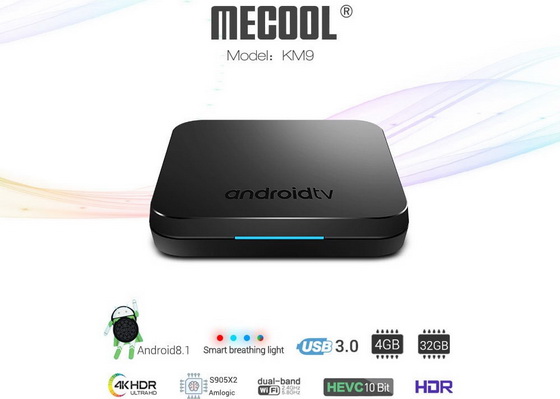
Download Android Pie 9.0 firmware for MECOOL KM9 TV Box

Download Android Pie 9.0 firmware for MECOOL KM9 TV Box Posted in Mar 3, 2019 in Firmwares , 1 comment This firmware is for MECOOL K...