naijafirmware Home of Android firmwares: MEDIATEK
Showing posts with label MEDIATEK. Show all posts

Thursday, 17 August 2017

INFINIX HOT S LATEST FIRMWARE DOWNLOAD added on 8/18/2017


Infinix hot S2 Stock Rom firmwarefile Download


For Laptop

 For Android N Version :X521-J5088A1C1-N-170505V10 Update :07/06/2017


 Version :X521-J5088E1G1-N-170508V10 Update :07/06/2017


Version :X521-J5088AC-N-170524V20 Update :07/06/2017  


Version :X521-J5088EG-N-170524V19 Update :07/06/2017  


For TF card

For Android N

  • Version :T-Card-X521-J5088A1C1-N-170505V10
  • Update :07/06/2017
  • DOWNLOAD
  • Version :T-Card-X521-J5088E1G1-N-170508V10
  • Update :07/06/2017
  • DOWNLOAD
  • Version :T-Card-X521-J5088AC-N-170524V20
  • Update :07/06/2017
  • DOWNLOAD
  • Version :T-Card-X521-J5088EG-N-170524V19
  • Update :07/06/2017
  • DOWNLOAD


Infinix S2 Pro Specs

Here are a few specs of the Infinix S2 Pro:

General Features

  • Platform: Android 6.0 (Marshmallow), XOS Chameleon
  • Processor: 1.3GHz octa-core Processor (MediaTek MT6753)
  • GPU: Mali-T720 MP2
  • Memory: 3GB RAM
  • Colours: Black, Blue
  • Dimension: 148.9 x 72.1 x 8.07 mm
  • Weight: 147 g
  • SIM Type: Micro-SIM
  • SIM Count: Dual SIM, Dual Standby

Display

  • Display: 5.2-inch Touch Display, 720 x 1280 pixels (282 ppi)
  • Screen Protection: 2.5D Dragontrail Glass

Camera

  • Rear Camera: 13 MP Camera, 1080p HD Video
  • Rear Camera Features: Dual-LED Flash, Autofocus
  • Front Camera: Dual 13MP + 8MP Camera, Autofocus, Soft LED Flash

Storage

  • Built-in Storage: 16GB or 32GB Storage
  • Memory Card Support: Yes, up to 128GB (requires SIM2 slot)
  • Bundled Cloud Storage:

Network Support

  • 2G GSM: Yes
  • 2G CDMA 1X: No
  • 3G WCDMA: Yes
  • 3G CDMA EVDO: No
  • 4G LTE: Yes, LTE Band 1(2100), 3(1800), 5(850), 7(2600), 20(800), 38(2600 TDD) 40(2300 TDD) or LTE Band 2(1900), 3(1800), 4(1700/2100), 7(2600), 28B(700) [Latin America]

Internet & Connectivity

  • GPRS: Yes, up to 48kbps
  • EDGE: Yes
  • 3G/WCDMA/HSPA: Yes
  • HSPA+: Yes
  • CDMA EVDO: No
  • 4G LTE: Yes
  • WLAN: Wi-Fi 802.11 a/b/g/n
  • Wi-Fi Hotspot: Yes
  • Bluetooth: Yes, Bluetooth 4.2
  • NFC: No
  • Infrared Blaster: No
  • USB Port: Yes, microUSB 2.0

Messaging

  • SMS/MMS: Yes
  • Instant Messaging: Yes
  • Push Emails: Yes
  • Email Protocol: IMAP4, POP3, SMTP

Entertainment

  • Music Player: Yes, mp3, WAV, FLAC, eACC+
  • Video Player: Yes, MPEG4, H.263, H.264, XviD
  • FM Radio: Yes
  • Loudspeaker: Yes
  • 3.5mm Jack: Yes

Navigation

  • Navigation: Yes, GPS with A-GPS
  • Maps: Yes, Google Maps

Sensors & Control

  • Digital Compass: Yes
  • Accelerometer: Yes
  • Proximity Sensor: Yes
  • Light Sensor: Yes
  • Barometer: No
  • Pedometer: No
  • Heart Rate Monitor: No
  • Gyroscope: Yes
  • Fingerprint Scanner: Yes (Rear)
  • Iris Scanner: Yes
  • Intelligent Digital Assistant: Yes
  • Motion Sensing / Gesture Control: No
  • Voice Control: Yes

Other Features

  • Video Streaming: Yes
  • Active Noise Cancellation: No
  • Wireless Charging: No
  • Water Resistant: No
  • Dust Resistant: No
  • Image Editor: No (download at store)
  • Video Editor: No (download at store)
  • Document Viewer: Yes
  • Document Editor: No (download at store)

Battery

  • Battery: 3000 mAh Li-ion Battery (Non-removable)
  • Standby Time:
  • Talktime:
  • Fast Charging: Yes

Wednesday, 21 June 2017

HOW TO FLASH XBO DEVICES TO AVOID BOOT LOOP

HOW TO PROPERLY FLASH AN XBO DEVICE TO AVOID 

BOOTLOOP OR DEADBOOT    FOR [TECHS]


In the present world and in the today’s ever changing and dynamics market trends there are a whole lot of Chinese mobile device brands in the Local & international market, these devices are widely used across all platforms as it is very crude in terms of its programming scope and not a daunting task to understand its internal work abilities and functions.

As it is widely and obvious that Nigeria is normally ranked high in the area of Chinese devices possession and use as well.

Since these devices are at constant use and also considering the fact that they are not high end devices, they are prone to developing hitches, faults, and some regular software issues along the way which include the following:- hanging, bootLoops, dead boots, display issues, battery drain or low battery life span etc.

Some of the top and widely used phones brands in Nigeria includes: Tec no, Infinix, Itel, XBO etc.


Let get to the point of this post therefore to talk about the dos and don’ts when flashing or updating an XBO Chinese mobile phone.

Here are the reasons why XBO devices die or have display issue after flashing.

As we all known the flashing of mobile devices require some necessary precautions which should be implemented and noted. The implementation should be at the appropriate time, hence if these precautions are not properly called to action at the right time when flashing XBO devices, there maybe issues or abnormality. Some of them are below…


Tips/precautions to implement:-

· Make sure battery charged above 30%

· Make use of quality USB cables

· Make sure software to be flashed is from a trusted and reputable source

· Do not interrupt the USB when the flashing oppression is still going on


· Do not plug or unplug any other devices from or on the pc when the operation is still running make sure to install the proper MediaTek devices driver, i.e MTK USB Vcom driver

HOW TO FLASH LENOVO DEVICES WITH QUALCOMM BOOTLOADERS

HOW TO FLASH LENOVO ADROID DEVICES WITH INBIULT QUALCOMM BOOTLOADER

Most devices that comes with Qualcomm bootloader for flashing the system may require some information and experience as well as a good working software environment when the need arises it is necessary to perform a system upgrade of flashing of a  Qualcomm devices there are many tools to call upon to perform the task at various times depending on the devices whether for use of the local recovery or in the use of Qualcomm programmed flashing tools.


Steps To Take Before Flashing A Qualcomm Device.    

Know and note down the software type to be flashed, whether it’s in the form of (Qsb) or in other formats.

Noting down the extension and format of the raw file of the flash file is an advanced step towards taking the next step.

Next step Is to choose to correct operating system to be used; one of the most friendly operating systems for successful flashing of Qualcomm devices is the reputable Windows called (Windows XP ) through old as it may seem but it’s very friendly and very compatible environment to setup a ground for mobile device flashing. Window XP unique features  include installing devices drivers without flaws or conflicts. Install drivers without flaws or errors runs most programs under Admin right in its defaults settings hence easing the users the task of granting permissions to some useful programs without much work.

Flashing or Running Software – Firmware in The (MBN or Qsb) Format

Most firmware made for Qualcomm devices normally comes in (MBN)

Hence the Qualcomm flash tool is normally employed while applying such firmware on Qualcomm devices

Put the Qualcomm devices at hand to be upgraded in bootloader or download mode to enable good handshake of drivers with system, to be a little more professional there is a useful button combination to be pressed to launch the device at hand into the download mode so as to be easily detected by the flash tool.

Select the firmware then click the start button.


TIPS TO NOTE TO AVOID DEAD-LOOP-PRELOADER AFTER FLASHING OR DOING SOFTWARE UPGRADE ON XBOX-DEVICES

STEPS TO TAKE TO AVOID HAVING ERRORS AFTER

UPDATING OR FLASHING XBO DEVICES

Make a backup of necessary device partition before the flashing of new firmwares, the needed file that are to be backup include:- 

Uboot, Secro, seccfg, Booting, Preloader, Protect F, Protect S, and all the file should be backed up with the exception of the system and Userdata and cache file. Make it safer so the device could be restored if the internal software gets sundered hence the backup could be done with any software that could backup file on an MTK Devices in scatter format.


Below are The necessary tips which would help an Engineer to have a very positive Result updating XBO Devices:

Make a backup of the preloader partition make sure to know the boot version of the device as flashing a wrong firmware may cause to the device to be hardbricked and can be restored only by test point method.ie RX and TX GND 

Before the flashing of XBO devices for example, XBO V3+ which has 2 different boot version: i.e MT6572:- Kitkat Android Version and MT6580 which is Lollipop Android and boot version hence boot versions are completely different but they are made for the Model of XBO devices. Avoid Flashing An XBO device with a ROM that backed up in(BIN) that is been formatted, because it would leave the device with low battery causes undue stress on the devices “BootLoader” hence the device could be dead at the end of the operation.


How to prevent XBO devices and some Infinix Clone devices from having BootLoops


a. Make sure to power down your XBO devices in a situation whereby the battery falls below (10 %)     percent.

b. Do not let the device power down by itself because it would lead to a bootloop at the end which would reload the new firmware on the device.

c. Avoid installing unwanted apps on the device which may resulting in dullness or hanging occasionally.


Monday, 19 June 2017

A GUIDE FOR UPGRADING FLASHING OR UPDATING OF TECNO DROID 7C, 7CS, 7CPRO


 A GUIDE  TO SUCCESFULLY UPDATING THE TECNO DROID 7C DROID 7CS DROID 7C PRO TABLETS


The tecno 7C droid series and family chain has many eye catching features and designs as altogether which puts them out and stand in the comparising and characteristics with similar devices and as well its software design which is very elegant beautiful and has high programming endowment hence it normally comes with the [Lollipop Android system] putting the end user to the treath of experiencing high quality and highly efficient Android system. The flashing or updating of the tecno droid tablet normally happen in occasions of some software issues which may arise on its own or its induced by the user of the device.

Tecno 7C Droid Software Issues delayed booting

Display issues after flashing network issues [invalid IMEI]

Poor network signal issue battery quick drain or low battery life

Distorted screen resulting issues occasional rebooting and hanging theft code issue (change of sim)

Upgrading Tecno droid 7C 7CS 7CPRO

Below are illustration of the procedure to upgrade the droid Tecno tablets without any much hassle or flaw:-

- make sure software to be flashed when loaded in the flash tool that all needed partitions and regions are well displayed.

- Make sure the scatter file contains the necessary partition listed in the firmware folder in its internal code when edited if not so consider editing or modifying the scatter or downloading another firmware that will ensure all regions are listed in the tool when executed

- Make sure battery level is above 30% before the upgrade process begin to avoid a possibility of having a tablet with dead bootloader at the end of the operation.


- Power down the device and connect the tablet to the pc and wait for pc detection then the flashing operation would start by automated process


                                      Tecno 7C (Tecno-7C-P121-A1-L)


                                    Tecno 7CS (Tecno-7CS-P121-B1-L-KE-Safaricom)


                                   Tecno 7C Pro ( China miracle  Box Backup Dump)


Wednesday, 1 February 2017

download solo aspire 3 stock rom flash file latest

DOWNLOAD SOLO ASPIRE 3 STOCK ROMS FREE

LATEST FLASH FILE 

SOLO ASPIRE 3 STOCK ROM 

Provided below is the link to the latest stock rom of Solo aspire 3 current flashing file stock/factory ROM
all the necessary tools are in the archive which includes ;sp flash tool ,drivers, and flashing instructions


PHONE DESCRIPTIONS

Rom /bOOT VERSION        Android version 5.1 lollipop

CAMERA

from 8 megapixel front camera and a back 5 mega pixel back/rear camera

DESIGN 
Display: 5.0 inches, 540 x 960 pixels, IPS display

Dimensions: 144.3 x 73.1 x 9.8 mm


HARDWARE PROPERTIES

1.2 GHz Cortex-A53 Quad-core processor

Qualcomm MSM8916 Snapdragon 410 processor chip
1 gigabyte RAM
8 GIGS internal storage
with support for upto 32 gigs external storage capacity


 CONNECTIVITY CAPABILITIES 
Bluetooth: Yes 
WiFi: Wi-Fi 802.11 b/g/n, Wi-Fi Direct, hotspot 
GPS: Yes 
USB: microUSB Cable


miscalleneous:
battery 2000 mAh


HOW TO FLASH SOLO ASPIRE 3 WITH NEW STOCK ROM


1.OPEN THE FILE DOWNLOADED FROM THE LINK PROVIDED
2AFTER UNARCHIVING YOU WILL FIND THE ROM ,FLASHING TOOL, & INSTRUCTIONS
3.INSTALL THE USB DRIVERS SKIP IF DONE ALREADY
4.LAUNCH SP FLASH TOOL AND LOCATE AND LOAD SCATTER
5 PLUG THE SMART PHONE TO PC USING USB CABLE
6 CLICK ON DOWNLOAD/UPGRADE TO BEGIN THE DOWNLOAD OF ROM ON DEVICE
7.AFTER SUCCESFUL FLASHING GREEN CIRCLE APPEARS
  DISCONNECT DEVICE FROM PC THEN BOOT DEVICE INTO NORMAL MODE


WARNING:FIRST BOOTING MAY TAKE A LONGER PERIOD OF TIME ,BE PATIENT AND TAKE A CUP OF COFFEE


SOLO ASPIRE 3 STOCK OS


SOLO Aspire 3 Firmware  / Stock ROM
Aspire3.fwvga.64+8.b1b8_app_V004_20161031
Android 6.0
MT6580


Wednesday, 25 January 2017

TECNO W5 STOCK ROM

TECNO W5 STOCK ROM DOWNLOAD OFFICIAL FIRMWARE

OFFICIAL TECNO W5 FLASH FILE


   BELOW IS THE LINK TO W5 STOCK ROM


Below is a link To Tecno W5 Stock ROM
This ROM Allow you to Unbrick  / Flash  Tecno W5

Tecno W5 Stock ROM Firmware 


Tecno W5 is currently the most recent PDA on the W line of Tecno cell's phone. It highlights 4G LTE organise and truly worth calling a move up to its forerunners.

Check the full specifications of W5 from Tecno versatile beneath.


Tecno W5 Stock ROM Firmware 

 SPECIFICATIONs
Measurement: 153.2 X 76.4 X 7.8 mm.

Screen measure: 5.5-inch High definition.

Screen Resolution: 720 x 1280 pixels.

Pixel Density: 300 PPI.

Body: Polycarbonate Plastic with Metal Frame.

System.

2G: GSM 850/900/1800/1900.

3G: HSDPA 900/1900/2100.

4G: LTE 3(1800)/7(2600)/20(800).

SIM Type: Dual Micro Sim.

Working System/Performance.

Android rendition: Android 6.0 Marshmallow.

Processor Type: Mediatek Chipset.

Processor Speed: Quad Core 1.3GHz Cortex-A53.

Designs Processor: Mali T720.

Camera.

Fundamental Camera: 13MP with Auto centre and LED Flash.

Video Recording: Yes, 1080p@30fps.

Front Camera: 5MP.

Memory.

Slam: 1GB.

Inside Storage Memory: 16GB.

SD Card Slot: Yes, bolster up to 64GB. memory stockpiling

Battery.

Unique finger impression, Accelerometer, Proximity, Compass.

Network.

Non-removable 3000 mAh.

Sensors.

Bluetooth: v4.0.

USB: microUSB v2.0.

GPS: Yes

Wi-Fi: WI-Fi 802.11 b/g/n, Wi-Fi coordinate, hotspot.

Media.

Sound Support: AAC, AMR, MP2, MP3, M4A, MKA.

Amplifier: Yes.

Video Support: H.263, H.264, MP4, MPEG4.

FM Radio: Yes.
colors.


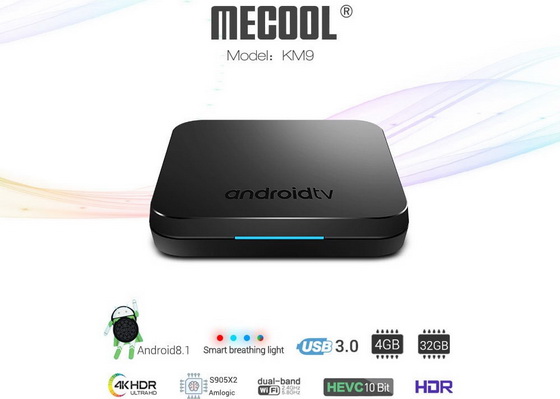
Download Android Pie 9.0 firmware for MECOOL KM9 TV Box

Download Android Pie 9.0 firmware for MECOOL KM9 TV Box Posted in Mar 3, 2019 in Firmwares , 1 comment This firmware is for MECOOL K...